Why Is My Site Slow? The Question I Answer More Than Any Other
In twenty odd years of doing this, one question has come up more than every other question put together. It arrives from clients, from developers, from people who corner me at WordCamps, and it is always some version of the same thing. Why is my site slow, and what do I actually do about it?
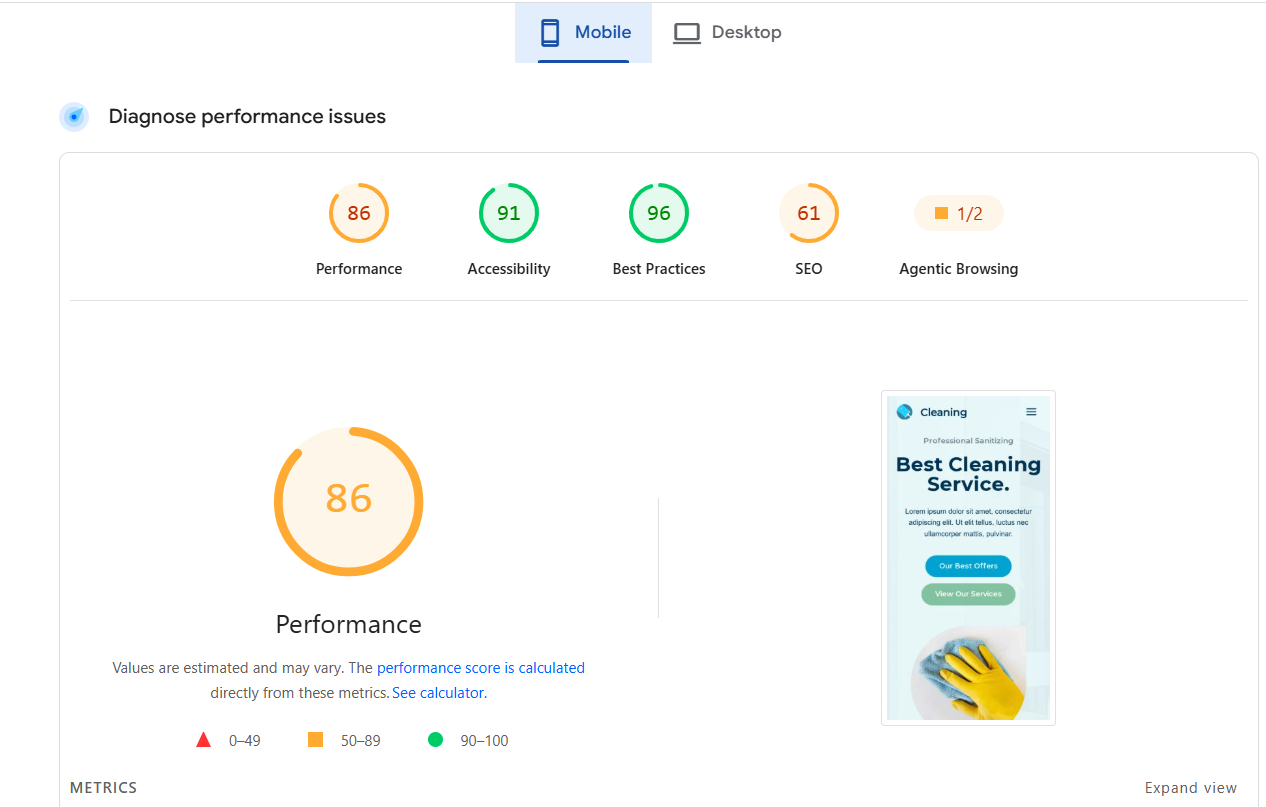
The honest answer used to involve a lot of fumbling. You run PageSpeed Insights, you get a number that ruins your afternoon, and then you go hunting. A forum thread from 2019. A plugin that promises to fix everything and breaks your checkout. An article that tells you to minify your CSS without mentioning that your page builder regenerates it on every save.
So I built the bit that was missing. It is called PageSpeed AI Advisor, and this is why it exists.
PageSpeed tells you what is slow. It stops there.
Google’s tool is genuinely good at measurement. It is measuring a real page in a real browser and the numbers it gives you are true. The problem is what it hands back. Eliminate render blocking resources. Reduce unused JavaScript. Serve images in next generation formats.
All correct, and all useless on their own, because PageSpeed has no idea what your site is made of. It does not know you run Kadence or anything else for that matter. It does not know which of your plugins enqueued that 80KB stylesheet, or that the script it wants you to defer is the one your booking form depends on. It is a diagnosis with no prescription, written by something that has never seen your patient.
That gap is where everybody loses their week.
What the plugin actually does
It runs the scan, then it hands the results to an AI provider you choose, using your own API key, and asks it to write the fixes out for your actual theme and plugin stack. Not generic advice. Advice that knows what you are running.
You enter a URL and you get back the category scores, the core metrics, a ranked list of fixes and every failing audit underneath it. Plain English, in order of what will actually move the number.
Bring your own AI, and your own key
This part matters to me more than the feature list does. The plugin has no account, no subscription, and no server of its own. There is nothing of mine sitting in the middle. You supply the key and you pay the provider directly, at cost, for the tokens each analysis uses.
On WordPress 7.0 and later it defaults to your site’s own AI connection through the core AI Client, so it quietly uses whichever provider you already set up under Settings, Connectors, and never asks you for a key at all.
If you would rather keep this plugin’s AI use separate, or you are still on WordPress 6.x, then Anthropic, OpenAI and Google Gemini are built in, as is any endpoint that speaks the OpenAI chat completions format. That covers OpenRouter, Groq, Together, Mistral and DeepSeek, and it covers vLLM, LM Studio and a local Ollama server if you would rather the whole thing never left your machine.
The Google PageSpeed Insights key is free, needs no billing account, and allows twenty five thousand scans a day. Without one, Google allows a handful of requests from your server’s IP address, shared with every other site on that host, which is why people think the API is broken when it is not.
The nifty part: fixes you can just apply
Where a recommendation matches a fix the plugin ships, an Apply button appears next to it. You press it and the thing is done, from the settings screen, without going anywhere near a code editor.
There is one rule I set myself before writing a line of it, and everything else follows from it. A fix never edits your theme, your plugins, or your media library. It only registers hooks that the plugin runs while that fix is switched on. Switching it off restores the previous behaviour exactly. Deleting the plugin does the same. Nothing can be left half applied if a request dies partway through.
Anything that could not meet that bar stayed as written advice instead of becoming a button. That ruled out minifying files, rewriting your markup, converting your images and editing your .htaccess. All four are things other plugins will happily do to you, and all four are how people end up restoring from a backup at eleven at night.
What does ship as a one click fix:
- Stop loading the emoji script
- Stop loading the oEmbed script
- Stop loading jQuery Migrate
- Stop loading Dashicons for logged out visitors
- Defer front end scripts
- Preconnect to the third party domains found in your last scan
- Compress new uploads harder
None of them are glamorous. Together they are usually worth more than the thing you were about to spend a day on.
Watching the number move
Every completed scan is kept. Scan the same page again and the report draws a trend line with the ninety and fifty thresholds marked, so you can see whether you are actually getting anywhere or just having a good afternoon.
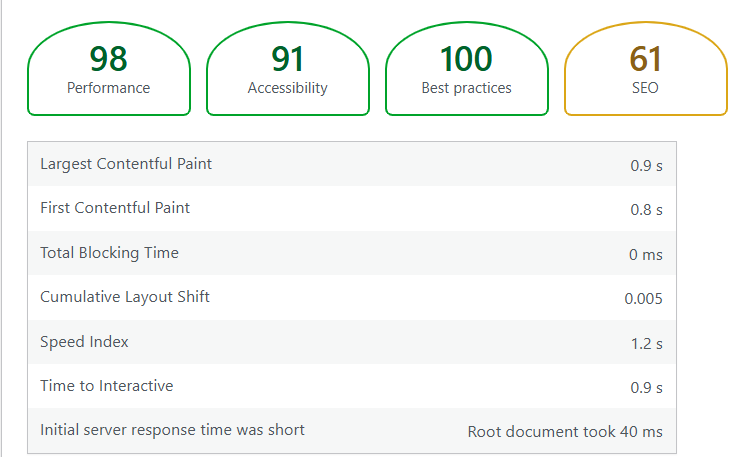
Your Pages and Posts screens gain a Speed column showing the latest score and the change since last time, which turns out to be the feature people use most. There is a row action and a bulk action too, and bulk jobs are spaced a minute apart so Google does not rate limit you.
One thing worth knowing before it worries you. PageSpeed scores move a few points between runs on identical pages. That is normal and it is not you. Read the trend line rather than the last number.
What it sends, and what it never sends
I would want to know this before installing somebody else’s plugin, so here it is plainly. Nothing is sent anywhere until you run a scan.
When you scan, the URL goes to Google so it can load and measure the page. After the scan completes, your chosen AI provider receives the URL, the scores and metrics, the failing audits including the file paths of the offending resources, and your WordPress and PHP version numbers. If you leave the box ticked in settings it also receives your active theme name and active plugin names, and you can untick that box.
No post content, no customer data, no user accounts, no passwords and no site credentials are ever sent. If you never enter an AI key, no AI provider is ever contacted at all.
Only administrators can use any of it. Every screen, every AJAX endpoint and every scan action checks the capability and a nonce.
It has also been through Plugin Check, the official tool the WordPress.org review team runs against every plugin submitted to the directory. It audits for security holes, missing escaping and sanitisation, deprecated calls and the directory’s own coding requirements. It came back clear.
Why I bothered
Because the advice was always out there, and it was always in the wrong shape. Scattered across a hundred blog posts, half of it out of date, none of it aware of your particular install. Meanwhile the tool that could see your install perfectly well, WordPress itself, was not saying anything.
Connect the measurement to a model, give the model the context of your actual site, and the fumbling mostly stops. That is the entire idea. Everything else is plumbing.
It is at version 0.3.0 and in testing now. If you would like a copy when it is ready, leave your X account below and I will tag you the day it lands.